Download official PrismaX logos, backgrounds, stickers, and emojis. Ask our AI guide anything about brand guidelines, points, teleop, and more.
Downloads
Official Brand Assets
All assets are free for community use. Keep the logo black or white only — no other colors.
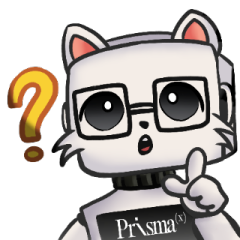
Prisma — Curious
Emoji · WEBP
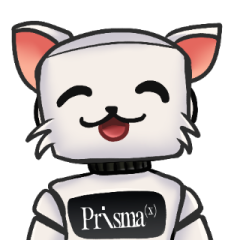
Prisma — Happy
Emoji · WEBP
Prisma — Animated
Emoji · GIF
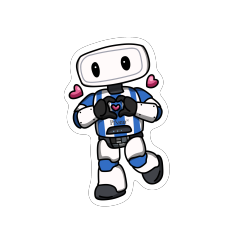
Robot Sticker 1
Sticker · WEBP
Robot Sticker 2
Sticker · WEBP
Robot Sticker 3
Sticker · WEBP
Robot Sticker 4
Sticker · WEBP
Robot Mascot
Sticker · PNG
Background 01
Wallpaper · JPG
Background 02
Wallpaper · JPG
Background 03
Wallpaper · JPG
Background 04
Wallpaper · JPG
Background 05
Wallpaper · JPG
Background 06
Wallpaper · JPG
White Background
Wallpaper · PNG
Logo — Cream
Full · SVG
Logo — Dark
Full · SVG
Icon — P(x)
Icon · SVG
Identity
Brand Guidelines
Keep PrismaX consistent. Black or white logo only — no exceptions.
Black
#202020
Cream
#DFD8D0
White
#FFFFFF
"The bridge between robotics and mainstream adoption."
Brand Statement · PrismaX
✓ Do
Use logo in black or white only
Keep the protection zone clear
Use Catalogue or Editorial typefaces
Maintain palette: black, cream, white
✗ Don't
Apply logo in any color other than black/white
Stretch or distort the logo
Use unapproved fonts or colors
Add effects to the logo
Help
Frequently Asked Questions
Common questions about PrismaX — account, points, teleoperation, and more.
Account & Login
PrismaX has two account types: Gmail and wallet. Points are recorded separately for each. If you switch login methods, you may see a different balance — you are viewing a different account. Always use the same login method you used when earning points.
Log in with your email → go to Profile page → find your wallet address → click Unlink → refresh the page. If the button does not work, open a support ticket with your email, wallet address, and a screenshot.
Try these steps: use a PC browser → refresh the page → clear browser cache and cookies → try a different browser → log in with your original method (Gmail, Solana, ETH, OKX, Phantom). If you cannot receive a verification code, check your spam/junk/promotions folder and wait a few minutes before retrying.
Points & Rewards
Daily login: Explorer 10 pts/day, Amplifier 30 pts/day, Innovator 50 pts/day. Double if connected with Monad.
First-time bonus: 1,000 pts (2,000 on Monad) — one time only.
Quiz: 500 pts per correct answer + 1,000 bonus for perfect score = up to 3,500 pts.
Robot control: 0.3 pts per second. First ever session = 3,000 pts bonus instead.
This may be caused by a token mismatch, inactive session, or network interruption. Re-login before joining a new session, avoid refreshing during an active session, and use a stable PC browser. If it keeps happening, open a ticket with video proof, timestamp, email, and wallet address.
First check whether you are using the same login method as before — Gmail and wallet accounts show different balances. Log out and try your original login method. If points are still missing, open a ticket with your previous balance, current balance, email, wallet address, and the approximate date of the change.
Teleoperation
Training Arm Gold & Black: Amplifier up to 3×/day, Innovator up to 6×/day. Teleop-time points only — no reward points.
Arena Arm: Amplifier up to 3×, Innovator unlimited. Has reward points.
Private Arm: Invitation code only. Reserved for events and partner activations. Has reward points.
This happens when your account is logged in from another location while you are in the queue. Re-login immediately, then re-enter the live room. Avoid logging into the same account from multiple devices or locations while queuing.
1. Refresh the website.
2. Clear YouTube cache: Chrome Settings → Privacy and security → Third-party cookies → Find YouTube → Delete.
3. Re-login to get a fresh authentication token.
4. Re-enter the live room.
The system releases sessions automatically if no operation is detected for more than 30 seconds. Keep interacting with the controls during your session. If the system shows an inactivity message even though you were active, open a ticket with a screen recording and timestamp.
Membership & Payment
Open a support ticket and include: your email or wallet address, transaction hash (if paid by wallet) or payment receipt (if paid by card), screenshot of your current membership status, and the approximate purchase time and timezone.
Open a ticket when: payment completed but membership not activated · double charge or refund needed · points missing after multiple sessions · unable to log in · persistent Invalid Token or control errors · black screen preventing teleoperation · robot arm hardware issue · suspicious activity or intentional damage report.